The Business ROI of Web Accessibility: Why A11y Is Your Competitive Advantage
Web accessibility isn't just compliance-it's a market expansion strategy. Learn how accessible design drives revenue, reduces legal risk, and improves UX for all users.
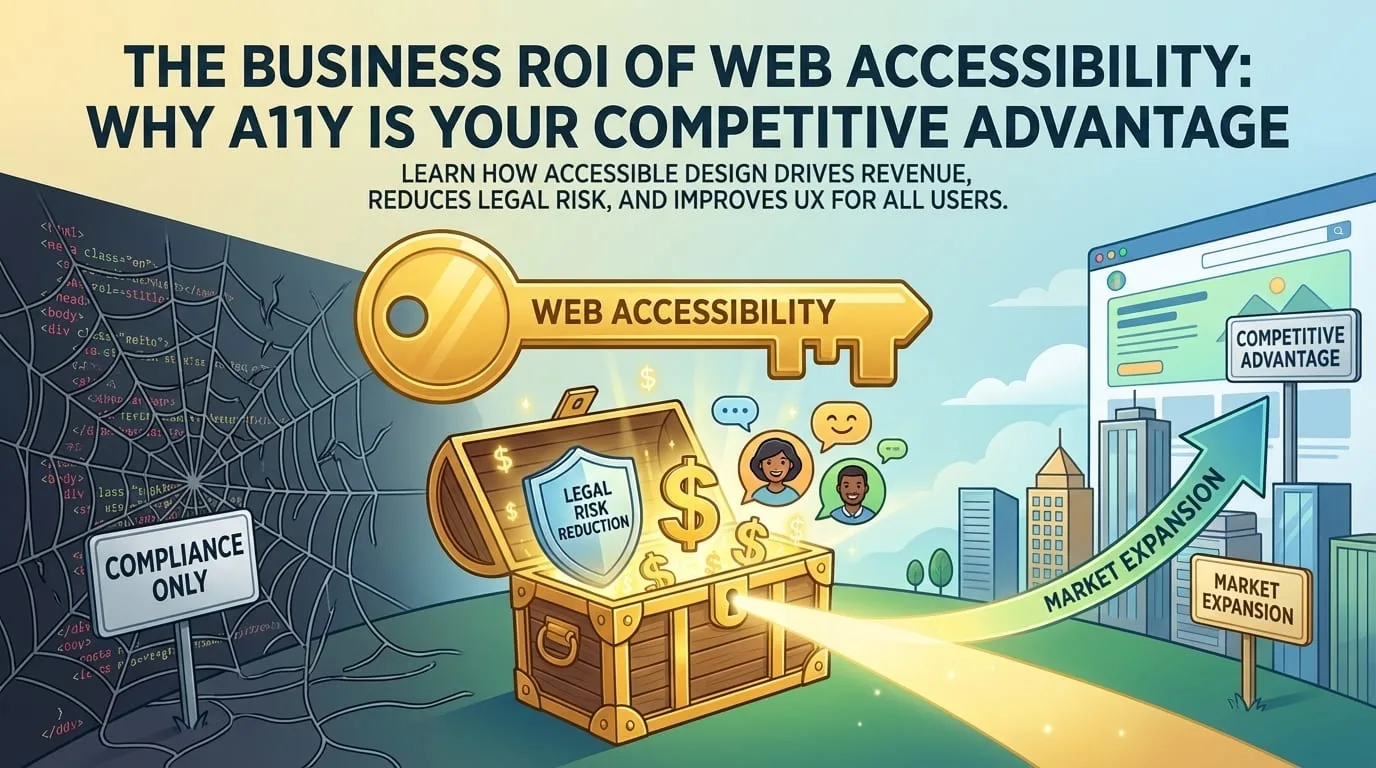
Web Accessibility (A11y) is often treated as a checkbox exercise-something legal requires, so developers grudgingly add alt text and call it done. This mindset misses the point entirely.
Accessibility is a market expansion strategy. It's better UX for everyone. And increasingly, it's a legal requirement with real teeth.
The Business Case for Accessibility
Let's start with the numbers that matter to executives:
| Business Impact | Data Point |
|---|---|
| Market Size | 1.3 billion people globally live with disabilities (WHO) |
| Purchasing Power | $490 billion disposable income in the US alone |
| Legal Risk | 4,000+ ADA digital lawsuits filed in 2023 |
| Customer Loyalty | 71% of disabled users leave sites that are hard to use |
| SEO Boost | Accessible sites rank higher (semantic HTML, alt text, structure) |
The Cost of Inaccessibility
Lawsuit Settlement Costs (Real Examples)
─────────────────────────────────────────────────────────────
Company                    Settlement Amount    Year
─────────────────────────────────────────────────────────────
Domino's Pizza             Undisclosed          2022
Winn-Dixie                 $100,000+            2021
Blue Apron                 Undisclosed          2020
Nike                       Undisclosed          2020

Average remediation cost AFTER lawsuit: $250,000+
Average proactive accessibility cost:   $25,000-50,000
Prevention is 5-10x cheaper than cure.
The "Curb Cut" Effect: Designing for All
When you design for disabilities, you improve the experience for everyone. This is known as the Curb Cut Effect-sidewalk ramps were built for wheelchairs, but they're used by parents with strollers, delivery workers with carts, and travelers with luggage.
Digital Curb Cuts
| Accessibility Feature | Originally For | Also Benefits |
|---|---|---|
| Captions | Deaf/HoH users | 80% of people watching videos in public |
| High Contrast | Low vision users | Anyone in bright sunlight |
| Keyboard Navigation | Motor impairments | Power users, RSI sufferers |
| Clear Language | Cognitive disabilities | Non-native speakers, stressed users |
| Text Resizing | Low vision | Aging population (everyone, eventually) |
| Voice Control | Motor impairments | Hands-busy users (cooking, driving) |
Situational Disabilities
Everyone experiences disability situationally:
Permanent         Temporary         Situational
─────────────     ─────────────     ─────────────
One arm           Arm in cast       Holding a baby
Blind             Eye infection     Bright sunlight
Deaf              Ear infection     Loud environment
Non-verbal        Laryngitis        Heavy accent situation
Designing for permanent disabilities helps temporary and situational users too.
WCAG Compliance Levels Explained
The Web Content Accessibility Guidelines (WCAG) define three conformance levels:
WCAG Conformance Levels
────────────────────────────────────────────────────────────────

Level A (Minimum)
├── Alt text for images
├── Keyboard accessibility
├── No keyboard traps
├── Pause/stop moving content
└── Basic form labels

Level AA (Recommended - Legal Standard)
├── All Level A requirements
├── Color contrast 4.5:1 (text), 3:1 (large text)
├── Text resizable to 200%
├── Skip navigation links
├── Consistent navigation
└── Error identification and suggestions

Level AAA (Enhanced)
├── All Level A + AA requirements
├── Color contrast 7:1
├── Sign language for media
├── Extended audio descriptions
└── Reading level assistance
Most legal requirements target WCAG 2.1 Level AA compliance.
Implementing Accessibility: A Practical Guide
1. Semantic HTML: The Foundation
80% of accessibility comes free when you use the right HTML elements:
<!-- ❌ Bad: Div soup -->
<div class="button" onclick="submit()">Submit</div>
<div class="nav">
  <div class="nav-item">Home</div>
  <div class="nav-item">About</div>
</div>

<!-- ✅ Good: Semantic HTML -->
<button type="submit">Submit</button>
<nav aria-label="Main navigation">
  <ul>
    <li><a href="/">Home</a></li>
    <li><a href="/about">About</a></li>
  </ul>
</nav>
What you get for free with semantic HTML:
- Keyboard accessibility
- Screen reader announcements
- Focus management
- Native browser behaviors
- SEO benefits
2. ARIA: When HTML Isn't Enough
ARIA (Accessible Rich Internet Applications) fills gaps for custom components:
// Custom Tabs Component with Proper ARIA
function TabList({ tabs, activeTab, onTabChange }: TabListProps) {
  return (
    <div role="tablist" aria-label="Content sections">
      {tabs.map((tab, index) => (
        <button
          key={tab.id}
          role="tab"
          id={`tab-${tab.id}`}
          aria-selected={activeTab === index}
          aria-controls={`panel-${tab.id}`}
          tabIndex={activeTab === index ? 0 : -1}
          onClick={() => onTabChange(index)}
          onKeyDown={(e) => handleKeyNavigation(e, index)}
        >
          {tab.label}
        </button>
      ))}
    </div>
  );
}

function TabPanel({ tab, isActive }: TabPanelProps) {
  return (
    <div
      role="tabpanel"
      id={`panel-${tab.id}`}
      aria-labelledby={`tab-${tab.id}`}
      hidden={!isActive}
      tabIndex={0}
    >
      {tab.content}
    </div>
  );
}
First Rule of ARIA
No ARIA is better than bad ARIA.
ARIA can make things worse if used incorrectly. Always prefer native HTML.
3. Keyboard Navigation
Every interactive element must be keyboard accessible:
// Keyboard-accessible dropdown menu
function DropdownMenu({ items }: DropdownMenuProps) {
  const [isOpen, setIsOpen] = useState(false);
  const [focusIndex, setFocusIndex] = useState(-1);
  const menuRef = useRef<HTMLUListElement>(null);

  const handleKeyDown = (e: React.KeyboardEvent) => {
    switch (e.key) {
      case "Escape":
        setIsOpen(false);
        break;
      case "ArrowDown":
        e.preventDefault();
        setFocusIndex((prev) => (prev < items.length - 1 ? prev + 1 : 0));
        break;
      case "ArrowUp":
        e.preventDefault();
        setFocusIndex((prev) => (prev > 0 ? prev - 1 : items.length - 1));
        break;
      case "Home":
        e.preventDefault();
        setFocusIndex(0);
        break;
      case "End":
        e.preventDefault();
        setFocusIndex(items.length - 1);
        break;
    }
  };

  return (
    <div onKeyDown={handleKeyDown}>
      <button
        aria-haspopup="menu"
        aria-expanded={isOpen}
        onClick={() => setIsOpen(!isOpen)}
      >
        Menu
      </button>
      {isOpen && (
        <ul role="menu" ref={menuRef}>
          {items.map((item, index) => (
            <li
              key={item.id}
              role="menuitem"
              tabIndex={focusIndex === index ? 0 : -1}
            >
              {item.label}
            </li>
          ))}
        </ul>
      )}
    </div>
  );
}
4. Color and Contrast
Color should never be the only indicator:
/* ❌ Bad: Color only */
.error {
  color: red;
}
.success {
  color: green;
}

/* ✅ Good: Color + icon + text */
.error {
  color: #d32f2f;
  border-left: 4px solid #d32f2f;
}
.error::before {
  content: "⚠️ Error: ";
}

.success {
  color: #388e3c;
  border-left: 4px solid #388e3c;
}
.success::before {
  content: "✓ Success: ";
}
Contrast Requirements:
| Element | WCAG AA | WCAG AAA |
|---|---|---|
| Normal text (<18px) | 4.5:1 | 7:1 |
| Large text (≥18px or ≥14px bold) | 3:1 | 4.5:1 |
| UI components | 3:1 | 3:1 |
5. Forms and Error Handling
Forms are where accessibility often breaks down:
function AccessibleForm() {
  const [errors, setErrors] = useState<Record<string, string>>({});

  return (
    <form aria-describedby="form-errors" noValidate>
      {/* Error summary for screen readers */}
      {Object.keys(errors).length > 0 && (
        <div
          id="form-errors"
          role="alert"
          aria-live="polite"
          className="error-summary"
        >
          <h2>Please fix the following errors:</h2>
          <ul>
            {Object.entries(errors).map(([field, error]) => (
              <li key={field}>
                <a href={`#${field}`}>{error}</a>
              </li>
            ))}
          </ul>
        </div>
      )}

      <div className="form-group">
        <label htmlFor="email">
          Email address
          <span aria-hidden="true" className="required">
            *
          </span>
          <span className="sr-only">(required)</span>
        </label>
        <input
          type="email"
          id="email"
          name="email"
          required
          aria-required="true"
          aria-invalid={!!errors.email}
          aria-describedby={errors.email ? "email-error" : undefined}
        />
        {errors.email && (
          <span id="email-error" className="error" role="alert">
            {errors.email}
          </span>
        )}
      </div>

      <button type="submit">Submit</button>
    </form>
  );
}
Testing for Accessibility
Automated Testing (Catches ~30% of issues)
// Using axe-core in Jest tests
import { axe, toHaveNoViolations } from 'jest-axe';

expect.extend(toHaveNoViolations);

describe('Button component', () => {
  it('should have no accessibility violations', async () => {
    const { container } = render(
      <Button onClick={() => {}}>Click me</Button>
    );
    const results = await axe(container);
    expect(results).toHaveNoViolations();
  });
});

// Cypress with axe-core
describe('Homepage', () => {
  it('should be accessible', () => {
    cy.visit('/');
    cy.injectAxe();
    cy.checkA11y();
  });
});
Manual Testing Checklist
| Test | How to Test | Pass Criteria |
|---|---|---|
| Keyboard Only | Unplug mouse, navigate entire site | All features accessible via Tab, Enter, Space, Arrow keys |
| Screen Reader | Use NVDA (free), VoiceOver (Mac), or JAWS | Content announced in logical order |
| Zoom | Browser zoom to 200% | No horizontal scroll, no overlapping text |
| Color Blindness | Browser extension simulators | Information not lost without color |
| Motion | Reduce motion in OS settings | Animations respect prefers-reduced-motion |
Accessibility Testing Tools
Automated Tools
─────────────────────────────────────────────────────
Tool                Use Case
─────────────────────────────────────────────────────
axe DevTools        Browser extension, CI integration
Lighthouse          Built into Chrome DevTools
WAVE                Browser extension with visual overlay
pa11y               CLI for CI/CD pipelines
Storybook a11y      Component-level testing

Screen Readers
─────────────────────────────────────────────────────
NVDA                Free, Windows
VoiceOver           Built-in, macOS/iOS
JAWS                Paid, Windows (most comprehensive)
TalkBack            Built-in, Android
Building an Accessibility Culture
Shift-Left Accessibility
Don't wait for QA-build accessibility into every phase:
Design Phase
├── Color contrast checking
├── Touch target sizing (44x44px minimum)
├── Focus state designs
└── Alternative text requirements in specs

Development Phase
├── Semantic HTML by default
├── Component library with ARIA built-in
├── Keyboard testing before PR
└── Automated a11y tests in CI

Testing Phase
├── Screen reader testing
├── Keyboard-only navigation
├── Zoom testing
└── Assistive technology compatibility

Deployment Phase
├── Accessibility statement published
├── Feedback mechanism for users
└── Regular audits scheduled
Team Responsibilities
| Role | Accessibility Responsibility |
|---|---|
| Designers | Contrast, focus states, touch targets, content structure |
| Developers | Semantic HTML, ARIA, keyboard support, testing |
| Content Writers | Alt text, reading level, link text quality |
| QA | Manual testing with assistive technology |
| Product Managers | User stories include a11y acceptance criteria |
Legal Landscape
Key Legislation
| Law | Region | Applies To |
|---|---|---|
| ADA | United States | All businesses (increasingly digital) |
| Section 508 | United States | Federal agencies and contractors |
| EAA | European Union | Products and services (2025 deadline) |
| AODA | Ontario, Canada | Organizations with 50+ employees |
| Accessibility Act | United Kingdom | Public sector and large businesses |
The Robles v. Domino's Decision
In 2022, the Supreme Court declined to hear Domino's appeal, letting stand a ruling that websites and apps must be accessible under the ADA. This set a powerful precedent:
If you do business in the US, your website must be accessible.
ROI Calculation Framework
Accessibility ROI Formula
──────────────────────────────────────────────────────────────

Benefits
├── Market Expansion: 15% potential customer increase
├── SEO Improvement: ~10-20% organic traffic increase
├── Lawsuit Prevention: $250K+ potential savings
├── Customer Loyalty: 71% of disabled users will return
└── Brand Reputation: Positive PR, social proof

Costs
├── Initial Audit: $5,000-25,000
├── Remediation: $10,000-100,000 (depends on scope)
├── Training: $2,000-10,000
└── Ongoing Testing: $5,000-20,000/year

ROI = (Market Expansion + Legal Savings - Costs) / Costs

Conservative Example (E-commerce, $10M revenue):
├── 5% market expansion = $500,000 additional revenue
├── Avoided lawsuit = $250,000
├── Total investment = $75,000
└── ROI = (750,000 - 75,000) / 75,000 = 900%
Key Takeaways
- Accessibility is a market opportunity, not just compliance
- The Curb Cut Effect means accessible design helps everyone
- WCAG 2.1 AA is the standard for legal compliance
- Semantic HTML provides 80% of accessibility for free
- Prevention is 5-10x cheaper than lawsuit remediation
- Automated testing catches ~30% of issues-manual testing is essential
- Shift-left accessibility into design and development phases
- Accessibility is ongoing, not a one-time project
Accessibility isn't a feature to be bolted on-it's a quality baseline. When you design for the edges, you build something better for everyone.
Ready to make your digital products accessible to all users? Contact EGI Consulting for a comprehensive accessibility audit and remediation roadmap that expands your market reach while reducing legal risk.
Keep reading
All articles

Get new articles by email.
One or two a month. No marketing, no forwarding your address. Unsubscribe anytime.